
Fill out your information, and we'll do the calculations for you
Blog Details
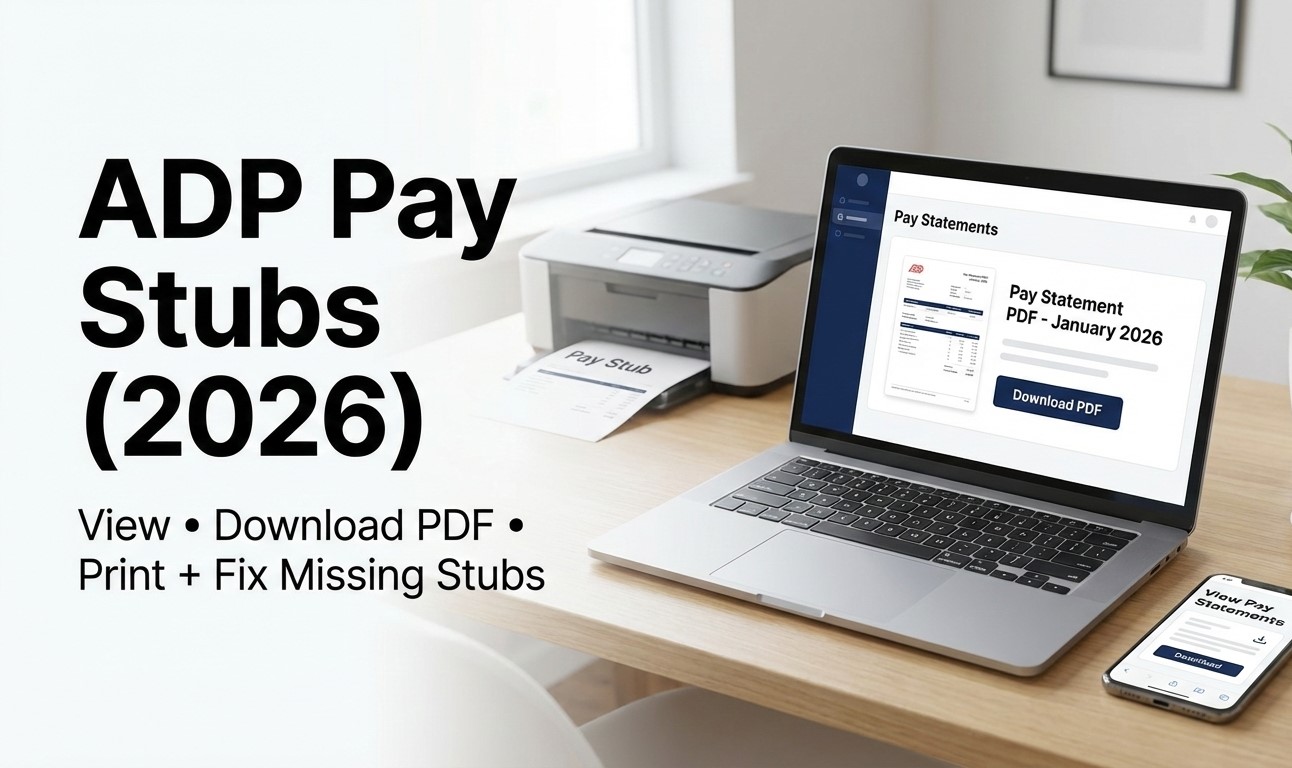
ADP Pay Stubs: How to View, Download PDF, and Print Your Pay Statement (2026)
Educational info only. ADP portals, menu labels, and access rules can vary by employer, payroll product, and single sign-on setup. This guide explains the most common ways employees find ADP pay stubs (pay statements), how to download a clean PDF, how to print without cutoffs, and what to do when pay stubs are missing. For your most accurate steps, confirm the exact ADP login link and pay statement path with your employer Payroll/HR team.
Quick answer (30 seconds)
- Use your employer’s official ADP login method. Many employees access pay statements via signin.adp.com and first-time users may need a registration code from their employer. (Source: ADP)
- Find: Pay Statements (sometimes under Pay or Pay & Taxes).
- Download: Open the pay date you need, then Download or Print → Save to PDF.
- If the newest stub is missing: ADP states the latest pay statement is available after 12:00 a.m. Eastern Time on your company pay date. (Source: ADP Help)
On this page
- Start here: choose the correct ADP login
- First-time setup (registration code)
- Desktop: view, download PDF, print
- Mobile: view and save as PDF
- When pay stubs appear + how far back you can access
- Printing rules (PDF vs PNG) + avoid cutoffs
- Troubleshooting checklist
- Proof of income checklist
- How to read your pay stub lines
- FAQs
Start here: choose the correct ADP login
|
What your employer told you |
Where to start |
|
“ADP pay statements / iPayStatements / W-2 online” |
Start at signin.adp.com. If you never logged in before, you may need a registration code from your employer. (Source: ADP) |
|
“Use the company SSO link” |
Use the exact intranet/SSO button your employer provided (do not guess portals). |
|
You are a former employee |
Check offboarding instructions first. If you cannot access, contact the former employer Payroll/HR for the correct process. |
First-time setup (registration code)
If you have never used ADP pay statements, ADP notes you may need a registration code provided by your employer. (Source: ADP)
- Step 1: Ask Payroll/HR for the ADP registration code (if required for your company).
- Step 2: Go to signin.adp.com and choose Register / New User Registration.
- Step 3: Complete verification, then create your user ID and password.
Mobile note: ADP’s Mobile Solutions help page indicates employees typically use the same ADP credentials for supported services, and first-time users may need New User Registration. (Source: ADP Mobile Solutions Help)
Desktop: view, download PDF, and print ADP pay stubs
- Step 1: Sign in using your employer’s ADP access method (often signin.adp.com). (Source: ADP)
- Step 2: Open Pay Statements (sometimes under Pay or Pay & Taxes).
- Step 3: Select the pay date you need and open the statement.
- Step 4: Use Download (if available) or use Print and choose Save to PDF.
Fast quality check before you send it: employee name, employer name, pay date, gross pay, deductions, net pay, and YTD totals (if required) must be visible. Avoid cropped screenshots.
Mobile: view and save a pay stub (PDF)
Mobile availability can vary by employer and service. ADP’s Mobile Solutions support explains mobile access depends on eligible ADP services and setup. (Source: ADP Mobile Solutions Help)
- Step 1: Sign in to the ADP mobile app your employer uses.
- Step 2: Open Pay or Pay Statements (labels vary).
- Step 3: Open the correct pay date.
- Step 4: Use your device options to Share or Print → Save as PDF (if a direct download button is not shown).
- Tip: If the mobile version looks compressed or incomplete, use desktop for the cleanest PDF export.
When pay stubs appear (timing) + how far back you can access
- Newest pay stub timing: ADP states the latest pay statement is available after 12:00 a.m. Eastern Time on your company pay date. (Source: ADP Help)
- How far back: ADP indicates pay statements are available for past periods depending on your statement system of record, and notes pay statements more than three years old are not available online. (Source: ADP Help)
Practical takeaway: If you need older pay stubs, ask Payroll/HR if they can provide official copies or if older statements live in a legacy payroll system.
Printing rules (PDF vs PNG) + avoid cutoffs
ADP provides different print instructions depending on how your pay statement displays (PDF vs image). Following the correct method prevents blank pages, cutoffs, and rejected documents. (Source: ADP Printing Help)
|
Statement format |
How ADP says to print |
|
|
Use the Print button on the Adobe Acrobat Reader toolbar. (Source: ADP Printing Help) |
|
PNG (image) |
Click the Print icon located above the statement. (Source: ADP Printing Help) |
- Best practice: Print from the saved PDF (not a browser tab) to reduce formatting issues.
- Check scaling: If totals are cut off, try “Fit to page,” then re-check that gross/net totals are still visible.
Troubleshooting checklist (most common problems)
Problem: I do not have a registration code.
Fix: ADP notes first-time users may need a registration code, and it is provided by the employer. Contact Payroll/HR for the correct code or SSO access link. (Source: ADP)
Problem: My newest pay stub is missing.
Fix: ADP states the latest pay statement appears after 12:00 a.m. Eastern Time on your company pay date. If it is still missing after that, contact Payroll/HR. (Source: ADP Help)
Problem: My pay statement opens blank or will not display.
Fix: ADP notes display issues can be related to unsupported PDF reader versions. Install/update a supported PDF reader, download the statement first, then open it from your device. (Source: ADP Help)
Problem: I cannot find Pay Statements after I sign in.
- Fix 1: Confirm you are using the exact portal your employer uses (often signin.adp.com). (Source: ADP)
- Fix 2: Look for Pay, Pay & Taxes, or Pay Statements (labels vary).
- Fix 3: If your employer changed payroll systems, ask Payroll/HR where older statements are stored.
Proof of income checklist (before you submit your PDF)
- Employee name and employer name are visible
- Pay period and pay date are visible
- Gross pay, deductions, and net pay are visible
- YTD totals are visible if the request expects them
- File is a clean PDF (not a cropped screenshot)
If you are self-employed or do not receive employer-generated pay stubs, use accurate, verifiable documentation. See: Self-Employed Proof of Income.
How to read your pay stub lines (fast)
- Earnings: regular, overtime, bonus
- Pre-tax deductions: benefits, retirement contributions
- Taxes: federal, state, local, Social Security, Medicare
- Post-tax deductions: some benefits, garnishments
- Pay Stub Abbreviations: Decode Paycheck Codes
- 2026 Pay Stub Deductions Explained (FICA, Medicare)
- Real vs Fake Pay Stub Verification (2026)
FAQs
How do I access my ADP pay stubs online?
ADP states that if your employer provides online access, employees can access pay statements using the ADP sign-in flow (often signin.adp.com), and first-time users may need an employer-provided registration code. (Source: ADP)
When will my newest ADP pay stub show up?
ADP states the latest pay statement is available after midnight (12:00 a.m. Eastern Time) on your company pay date. (Source: ADP Help)
How do I print my ADP pay statement?
ADP provides different print instructions depending on format: print from the Adobe Acrobat Reader toolbar for PDFs, or use the print icon above the statement for PNG format. (Source: ADP Printing Help)
My pay statement will not display. What should I do?
ADP notes display issues can be related to PDF reader compatibility. Install/update a supported PDF reader, download the statement first, and open it from your device. (Source: ADP Help)
Related guides on ePayStubs
Need a clean earnings record? Use real, verifiable information only. Do not create or submit fabricated income documents.
Recent Posts
If the white whale be raised it must be...

The new rules of personal finance in...
Every business owner must be able...